
Integration Tools To Get The Most Out Of Data
Empowering applications with enterprise data is our passion here at Progress DataDirect. We offer cloud and on-premises data connectivity solutions across Relational, NoSQL, Big Data and SaaS data sources. Performance, reliability and security are at the heart of everything we design for thousands of enterprises and the leading vendors in analytics, BI and data management.
Create a Custom ODBC or JDBC Driver
- Codelessly Connect
- Leverage an SDK
- Tailor-Made Drivers
Access Cloud and On-Premises Data
- Enterprise Data Hub
- Securely Share Data
- Cloud and Application Modernization
- Salesforce Connect (ODATA)
Embed Connectivity in an Application or Platform
- Minimize Development Costs
- Portfolio of High-Value Connectors
- 24/7 World-Class Support
Seamless Data Access for BI and Analytics
- Use Your Preferred Tool
- Compliant with Industry Standards
- Plug and Play
Connect an Application to One or More Data Sources
Filtering results
Sorry, we weren't able to find data connectors for your filtering option, but you can contact us to discuss your needs.
Contact UsMost popular data connectors





Software Vendors (ISVs)
Embed connectivity in an application or service
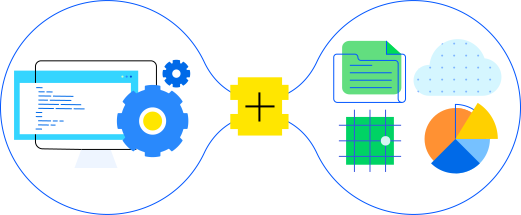
Minimize your development costs with our portfolio of high-value connectors for a variety of data sources. Enjoy 24/7 world-class support and security for greater peace of mind.
Explore moreEnterprise Users
Real-time connectivity to data sources
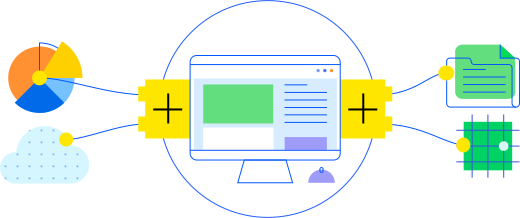
Connect with affordable, easy to use and time saving drivers for faster SQL access to your data.
Explore moreSuccess Stories


Enabling Business Intelligence for Thousands of Analysts


 Success Story

 Success Story



Learning & Support




Let Us Help
As a leader in data connectivity, keeping up with the evolving trends in the space is our mission. But if we haven’t built the connector you need yet, reach out and we’ll help you develop the right solution.